Before generating a QR code, please make sure you have maintained your table data in the background:
["**Table/Table Code/Table Number Maintenance and Management**"](https://www.yuque.com/apifm/doc/czzvpx)
# Generate QR code
You can use any method to generate a QR code. After the user scans the code, he or she can open your own application (mini program, H5, official account, app, etc.). The difference is that you need to place two parameters (desk code and table key) in the QR code. After the user scans the code, you need to be able to read these two parameters in your own application.
Then, as long as you know the above implementation principles, you can use any method to generate QR codes.
# Principle of data sharing for multiple people to scan QR code and order food
For the same table QR code, if multiple people order food at the same time, how can they see the same shopping cart and the same order data?
The principle is this. The system will assign a virtual user to each table, and then this virtual user will have the same shopping cart and order functions as ordinary users. When everyone scans this QR code, it is equivalent to logging in to this virtual user. Then the shopping cart and order that everyone sees becomes the same user.
Now that we know the implementation principle, we will know how to enable multiple people to share shopping carts and order data by scanning QR codes and ordering at the same time. Please continue reading.
# Get table token
We all know that users can obtain a token after logging in, and then they can operate and manage their own data through this token.
Through the above principle, we also know that we can regard the dining table as a user. Then, to view the shopping cart data and ordered dish (order) data, a token is required.
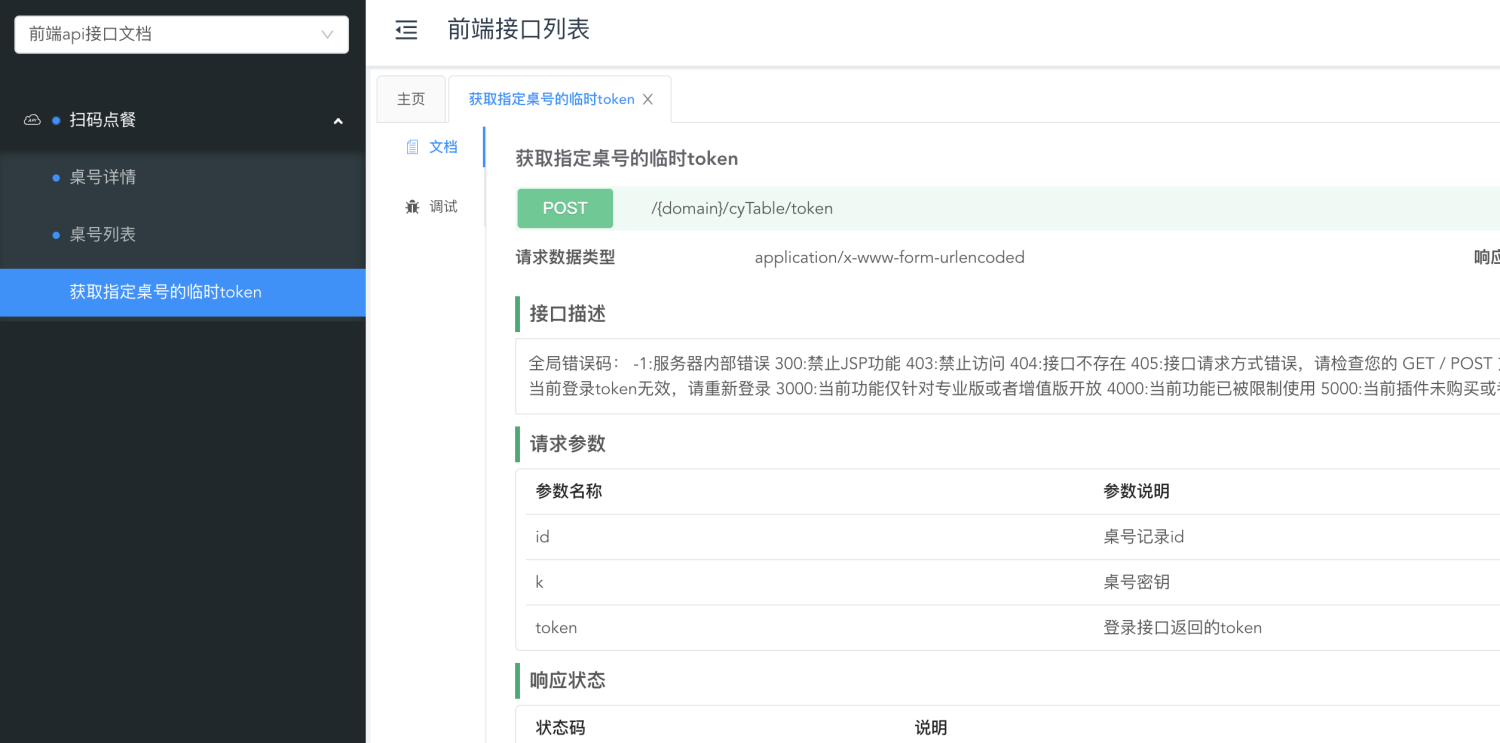
By calling the interface in ["Frontend API docs"](#), you can get the token of the dining table:
# How to effectively manage 2 tokens
One is the token obtained by the user after logging in, and the other is the token obtained by scanning the dining table code. These two tokens represent two users respectively: one is himself and the other is the dining table.
Therefore, it is recommended that you save these two tokens separately in the local storage of the front-end application (cookie/storage/others), and use specific tokens according to the actual usage scenario. Do not overwrite your original user token with the table token just because you scan the QR code, and do not use your own token as the original table token.
# Use token to read data
At this point, you can already use the token obtained after scanning the dining table QR code to call the following interface:
1. Shopping cart related interfaces;
2. Order-related interfaces;