# Register and open a mini program account
[https://mp.weixin.qq.com/](https://mp.weixin.qq.com/)
Select the identity of "Enterprise", "Individual Industrial and Commercial Household" or "Individual" according to your actual situation, and register a mini program account
Get access to your own mini program**appid and secret information**, save it, it will be used below
["How to check the APPID of my mini program? Where can I check the APPID of my mini program? 》](https://jingyan.baidu.com/article/642c9d340305e3644a46f795.html)
"[Set the legal server domain name of the mini program](https://www.yuque.com/apifm/doc/tvpou9)"
# Register and open a backend account
[https://admin.it120.cc/](https://admin.it120.cc/)
Register for free and open a new backend, then log in. The home page after logging in, **Please note your exclusive domain name**, will be used later
Left menu "Factory settings" --> "Data Clone" --> "Clone other people's data to me"
Fill in the other party’s merchant ID 1708
Click "Clone Now". After the cloning is successful, F5 refreshes the background.
Left menu, WeChat settings, fill in the appid and secret obtained in the previous step.
# Download and install development tools
[https://developers.weixin.qq.com/miniprogram/dev/devtools/download.html](https://developers.weixin.qq.com/miniprogram/dev/devtools/download.html)
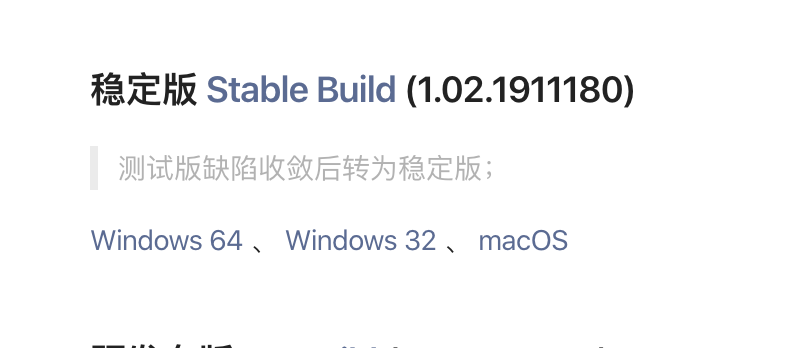
According to your own operating system, download the latest stable version and complete the installation after the download is complete.
# Download the mini program source code
[https://github.com/gooking/visitingCard](https://github.com/gooking/visitingCard)
Or download the code cloud image:
[https://gitee.com/javazj/visitingCard](https://gitee.com/javazj/visitingCard)
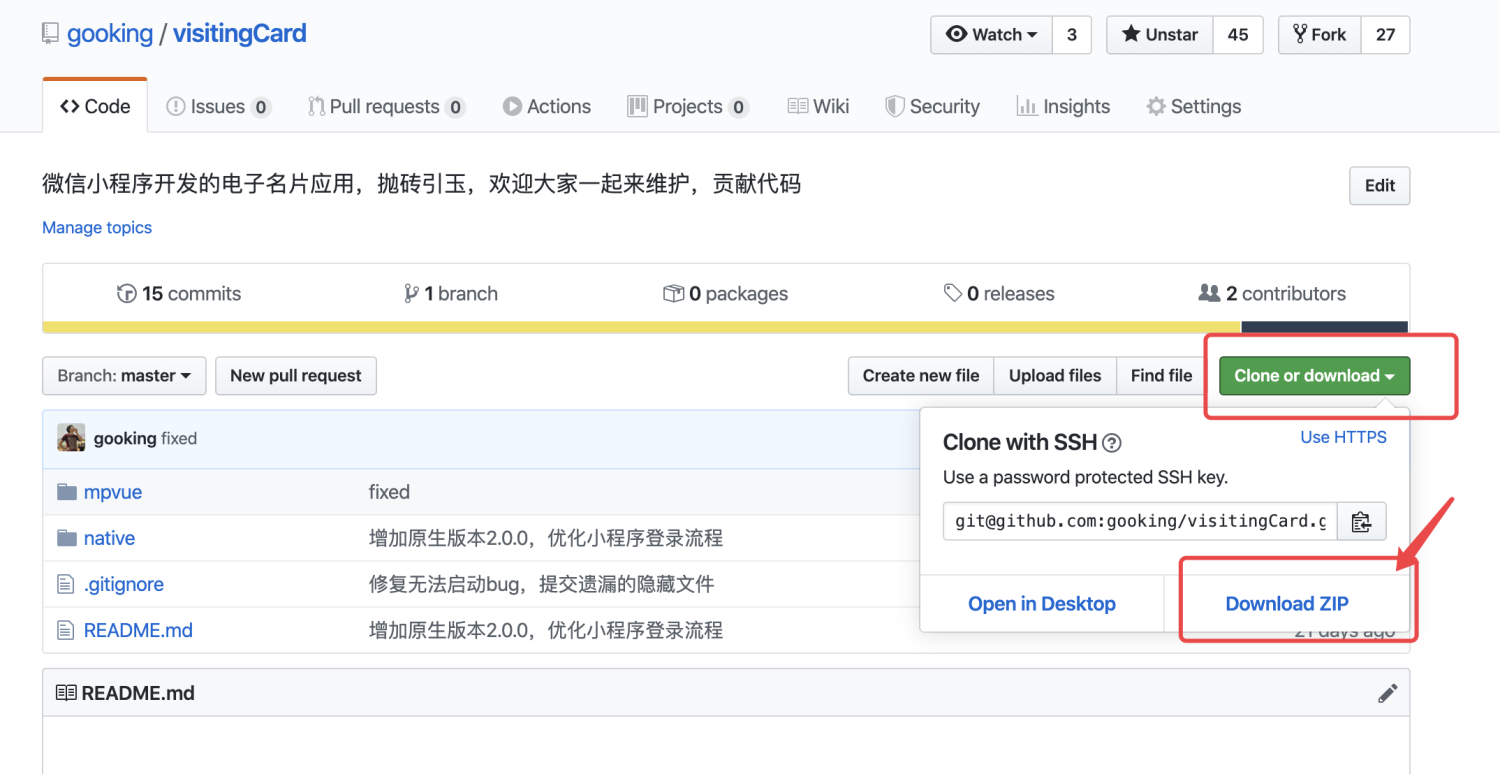
Download the latest mini program source code. The download is a zip compressed package. Please unzip it.
# Run the mini program to see the effect
Double-click to run the small program development tool installed in the first step and open it to see the effect.
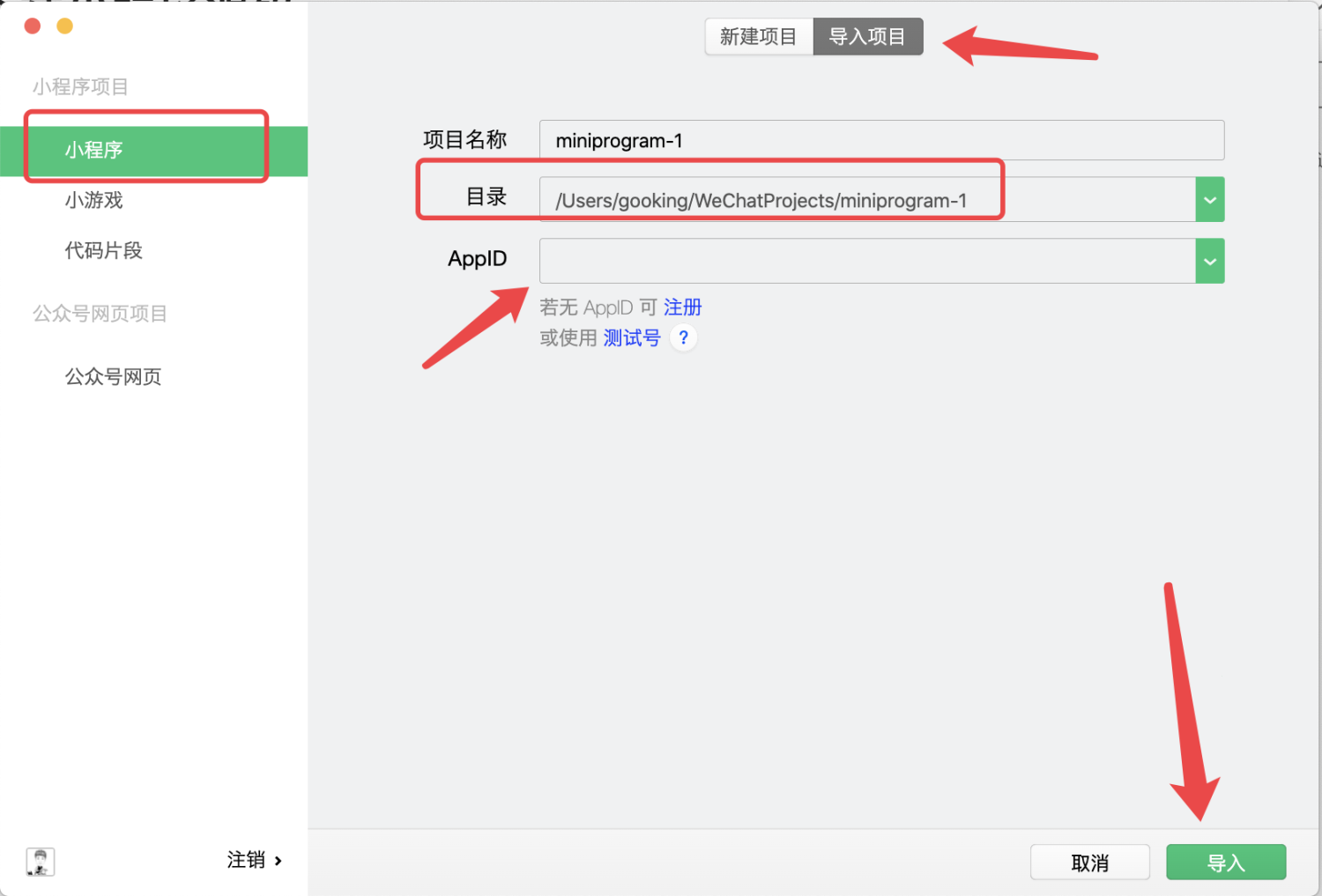
In the directory, select the applet source code you downloaded above and unzip it** native **Inside the folder
Import the project here, and select the directory where the applet code you downloaded and compressed in the "second step" is located.
**APPID must be changed to the APPID of your own mini program****
****APPID must be changed to the APPID of your own mini program****
****APPID must be changed to the APPID of your own mini program**
Then click the import button
["How to check the APPID of my mini program? Where can I check the APPID of my mini program? 》](https://jingyan.baidu.com/article/642c9d340305e3644a46f795.html)
# Configure docking with your own backendIn the development tool, change the subDomain in config.js to your own exclusive domain name, and press ctrl + s to save.#
Initialize test data
Log in to the background, left menu "Factory settings" --> "Data Clone" --> "Clone other people's data to me"
Fill in the other party’s merchant ID 1708
Click "Clone Now", then log out of the background and log in again
You will immediately have initialized test data to facilitate your testing
# How to add a business card
1.Log in to the backend, go to the left menu "Factory settings" --> "Module management", enable the "AI business card" module, then exit and log in again to the backend. You will be able to see the related menu of the business card.
2. Click "Visitor Management" and select a user to assign a business card to them
3. Click "Business Card Management" and you will be able to see all business card information# **How to set default business card**
****
1.After setting the default business card, any user who enters the mini program will load a specified default business card for display.
2. Left menu, system settings, system parameters, text type parameter: DEFAULT_FRIEND_UID Set the default business card# How to set the business card display fieldLeft menu, system settings, system parameters, text type parameters:user.ext.filedsSet up business card fields# Launch mini program
1. Upload the code to the WeChat server
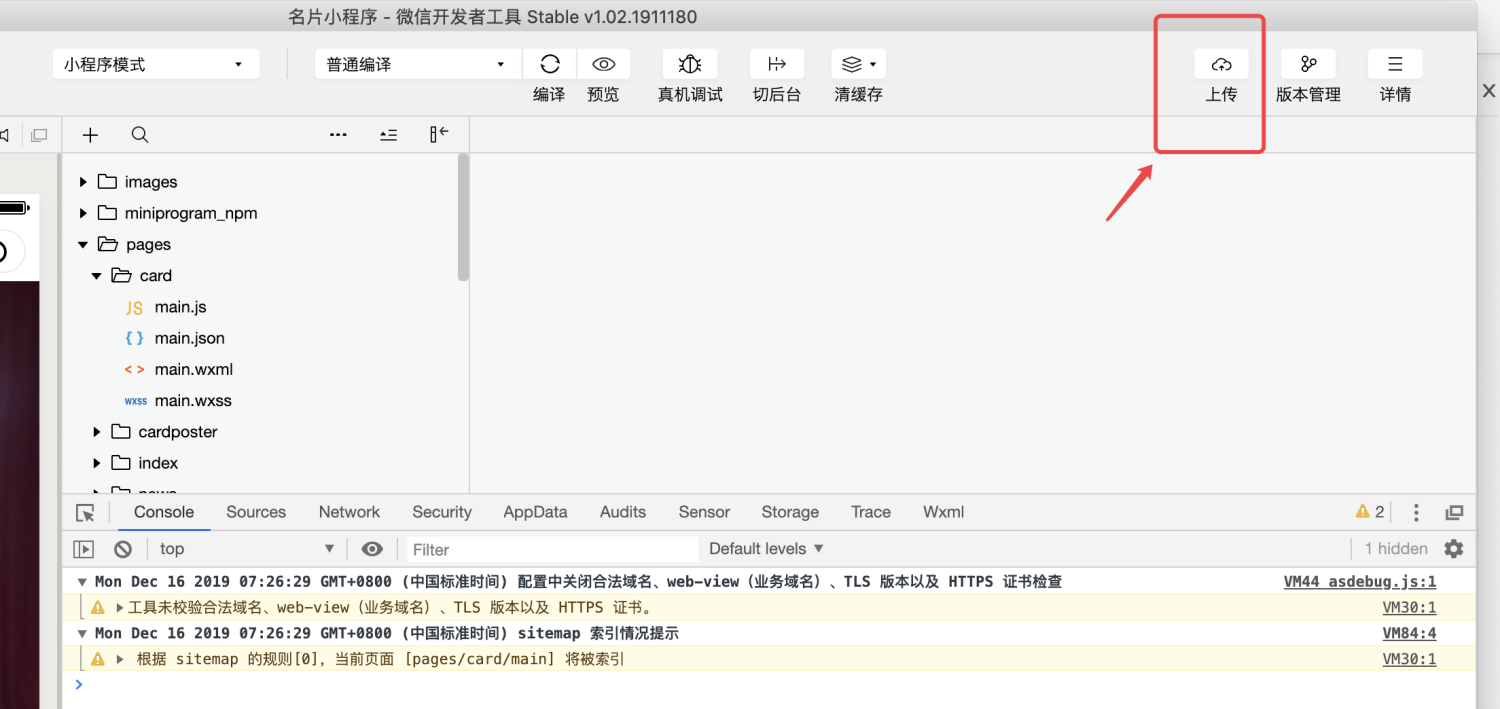
2. Submit for review
Log in to the mini program merchant backend in the "first step", go to "Version Management" on the left menu, find the mini program version you just uploaded, and click Submit for WeChat review. Once approved, your mini program can be officially released.
3. Officially release your mini program
When logging in to the mini program merchant backend in the "first step", go to "Version Management" on the left menu, find the version that has passed the review, and click Publish Now
# FAQ
## Set administrator permissions
The four menus of "Product Management", "Dynamic Management", "Business Card Management" and "Visitor Management" can be managed by setting permissions by administrators.
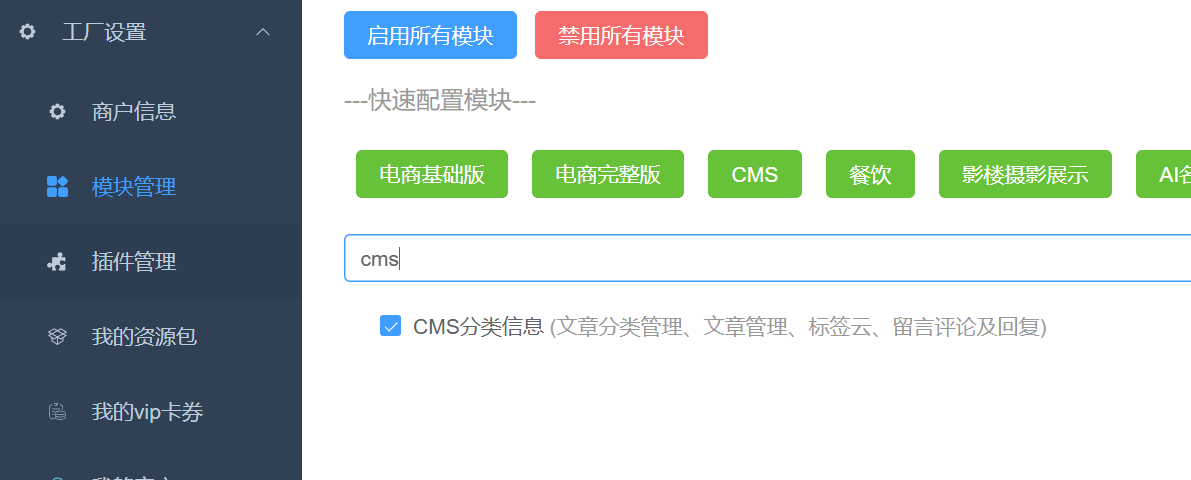
Product management and dynamic management rely on the CMS module, so the CMS module needs to be enabled before allocation:
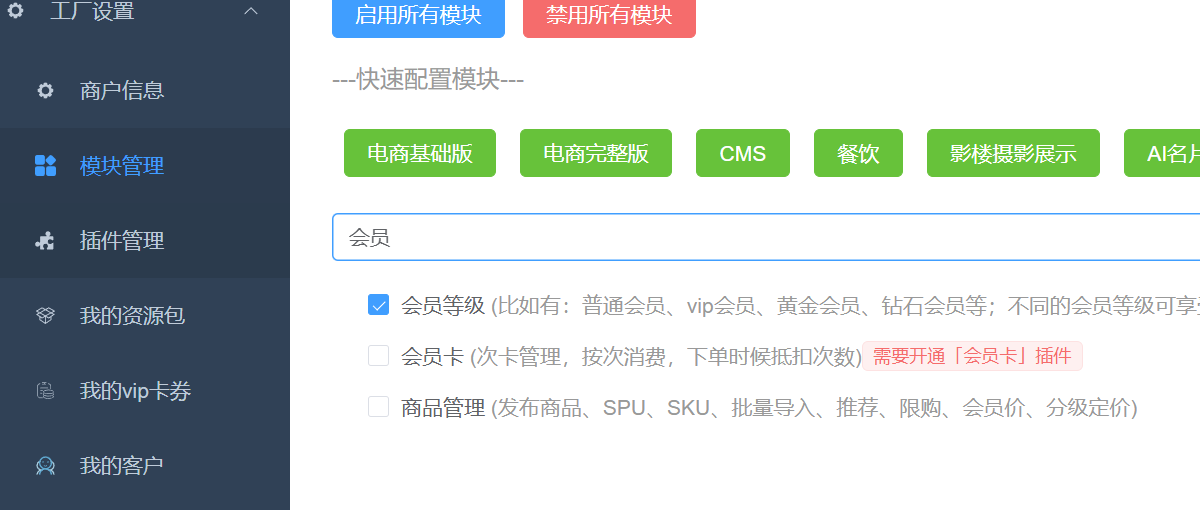
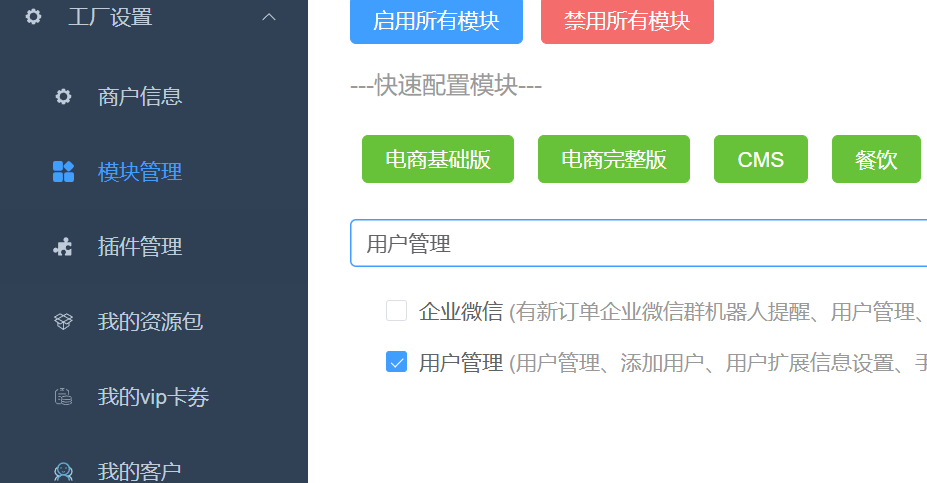
Business card management and visitor management rely on the two modules of user level + user management, so these two modules must be enabled first before they can be assigned:
After all modules are enabled, you can create a character:
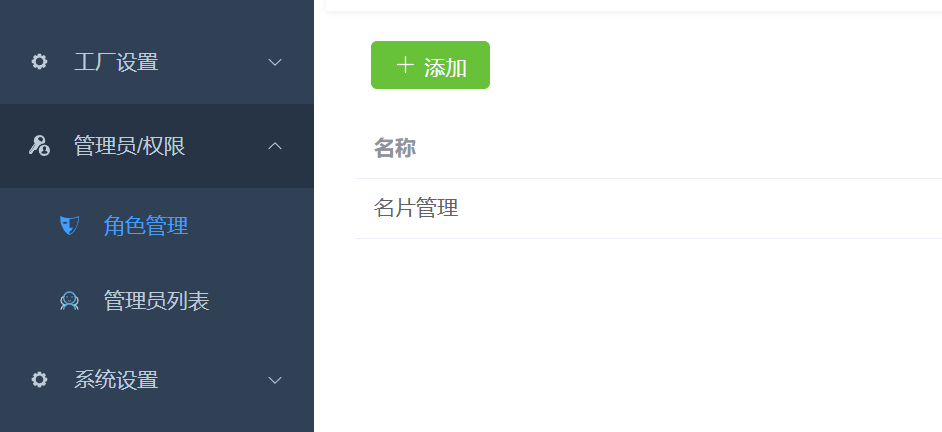
The permissions that need to be checked are described as follows:
1. If you want to give permission to edit business cards, you need to check the permissions of "Upload File" and "Upload File V2", otherwise you cannot upload the business card avatar.
2. If you need to give permissions to "Product Management" and "Dynamic Management", you need to check the entire permissions of "Article Management V2"
3. If you need to view business cards or visitor lists, you need to check the "View Details" permission under "Member Level" ➕ "User Details V2", "User List V2", "Edit User Information V2", "Edit User Information", "Get Details" under "User Management"
4. Check the permissions under the "Business Card Management" permissions at the bottom as needed.