# Preface
This tutorial is based on the "apifm-wxapi" module and teaches you how to quickly implement small program development, so you may need to understand the following knowledge points first:
["Creating HelloWorld Project"](https://www.yuque.com/apifm/doc/hezlrm)
["Use "apifm-wxapi" to quickly develop small programs"](https://www.yuque.com/apifm/doc/mdldsd)
["Register for free to open the backend and obtain an exclusive domain name"](https://www.yuque.com/apifm/doc/qr6l4m)
WeChat payment requires users to log in before it can operate, which means token authorization is required. Please understand first:
["WeChat Mini Program login to obtain openid and third-party tokens"](https://www.yuque.com/apifm/doc/kaygbw)
**You need to log in to your mini program backend first and activate your own WeChat payment in the left menu "WeChat Payment" before you can complete the following demonstration**
# Configure your WeChat payment merchant number and secret key in the background
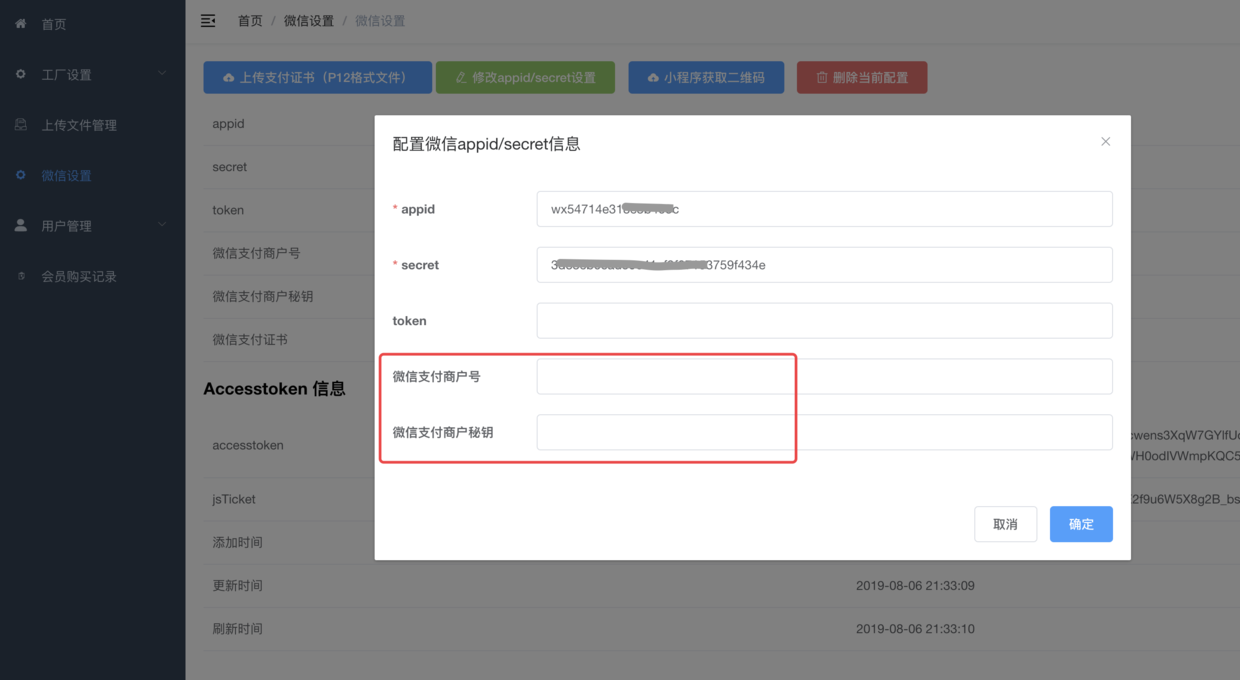
Log in to the above free backend, go to the left menu --> WeChat Settings --> Modify appid/secret settings
Fill in the “WeChat Payment Merchant ID” + “WeChat Payment Merchant Key”;
WeChat Pay Merchant Number: The merchant number you applied to activate WeChat Pay
WeChat payment merchant key: Log in to the merchant backend of WeChat payment [https://pay.weixin.qq.com](https://pay.weixin.qq.com/) You need to manually set an api security key (it is an api key, not an apiv3 key, don’t make a mistake)
# Mini program code:
```plain
const WXAPI = require('apifm-wxapi')
WXAPI.init('gooking')
Page({
data: {
},
onLoad: function (options) {
},
pay() {
WXAPI.wxpay({
token: 'Token obtained after logging in',
money: 100,
payName: 'Payment Test'
}).then(function (res) {
console.log(res)
// Call up WeChat payment
wx.requestPayment({
timeStamp: res.data.timeStamp,
nonceStr: res.data.nonceStr,
package: 'prepay_id=' + res.data.prepayId,
signType: 'MD5',
paySign: res.data.sign,
fail: function (aaa) {
wx.showToast({
title: 'Payment failed:' + aaa
})
},
success: function () {
wx.showToast({
title: 'Payment successful'
})
}
})
})
}
})
```
> WXAPI.init('gooking') This code links your mini program to your backend, where gooking is your exclusive domain name (please check the chapter about exclusive domain names in the preface);
>
**After the payment is completed, you can let the system automatically complete the next step:**
["Detailed explanation of the use of nextAction parameter in the online payment interface"](https://www.yuque.com/apifm/doc/aetmlb)
_Done! _
You can now let users view their own assets and fund details:
["Add a fund module to the existing mini program (view assets, view capital flow"](https://www.yuque.com/apifm/doc/lhwvwa)
For advanced applications of more parameters of the _wxpay method, you can view the following interface document review: _
["api interface document"](#)
# Troubleshooting common problems
_If you encounter problems during the payment process, please troubleshoot according to the following copy:_
["WeChat Payment 50000 Error/Signature Error/Unable to Pay Solution"](https://www.yuque.com/apifm/doc/nrw662)
Looking forward to your progress!
Thanks!