WeChat Mini Program interface packet capture and troubleshooting tutorial
Help documentationUpdate anytime
Capturing packets to view the initiation parameters and return data of an interface is a required course for mini program development, and it is also the most basic skill that must be mastered before learning mini program development.
We found that many students, when doing front-end development, encounter problems when calling interfaces. They use the most outdated method of console.log(xxxx) to print out the request parameters / return value of the interface. This method is time-consuming and laborious! Extremely undesirable! !
console.log(xxxx) This method looks like a fierce keyboard operation, but it is actually very inefficient! Moreover, after debugging, do you still want to delete these codes?
Let’s teach you how to use the network tag of the mini program development tool to view the interface network request packet and quickly troubleshoot the problem.
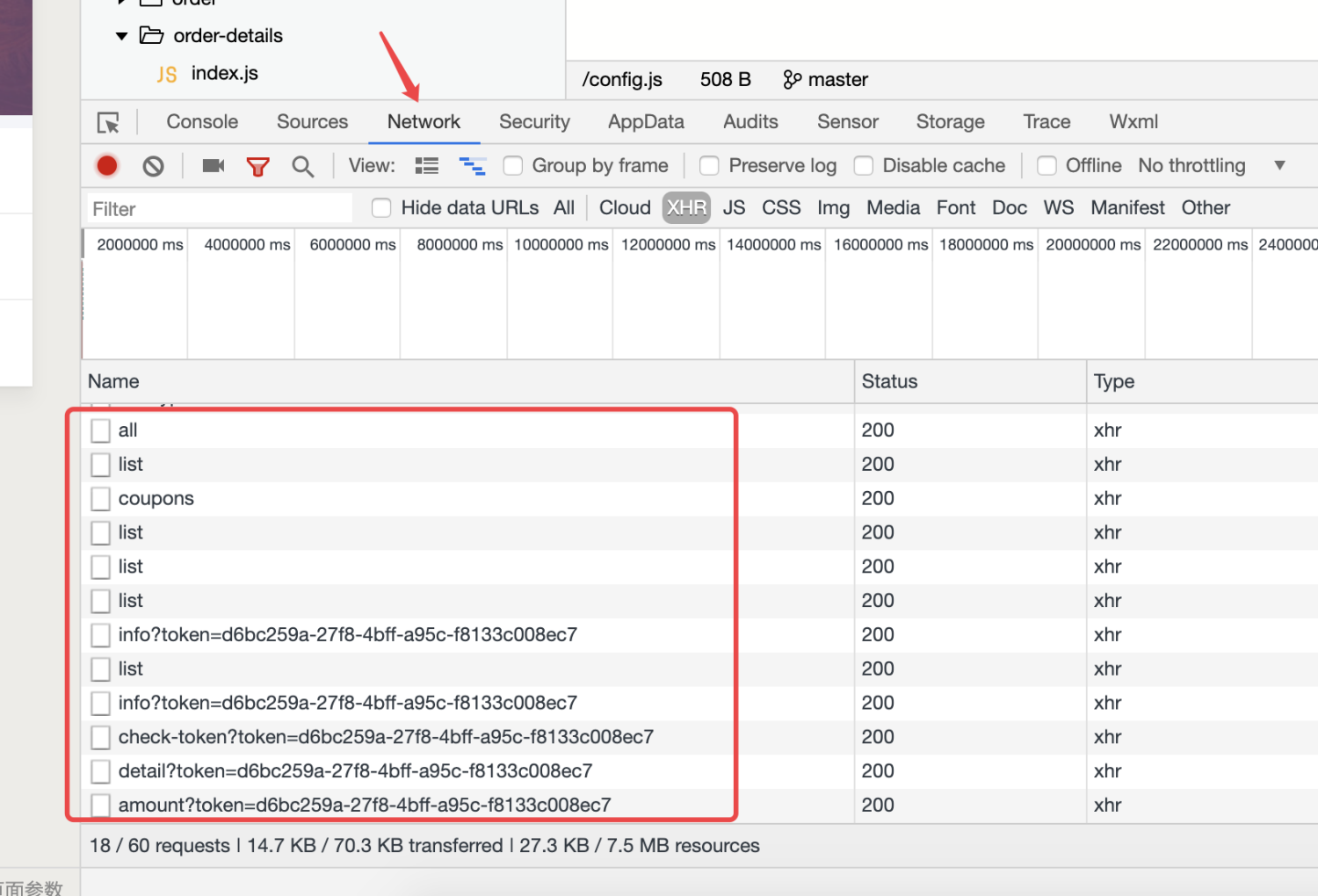
On the mini program development tool, there is a "network" label at the bottom. Here you can view all interface requests and interface returns of the current mini program;
All interface calls will appear here. By checking the interface requests and returns here, you don't need to console.log(xxxx) everywhere in the code to debug.
**There are so many interfaces here, how can we know which interface it is? **
It's very simple. You first clear all the current records (by clicking the icon in the picture below):
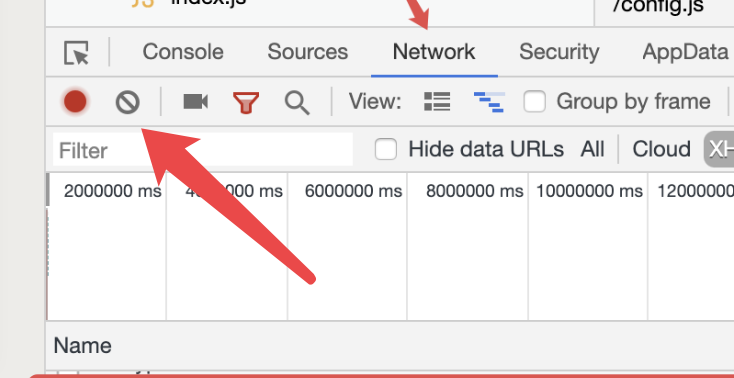
After clearing it, click the button you need to operate. At this time, only the interface call record of this operation will appear, right! That’s it!
Next, if you click on the interface record, the details of this interface call will appear, as shown in the figure:
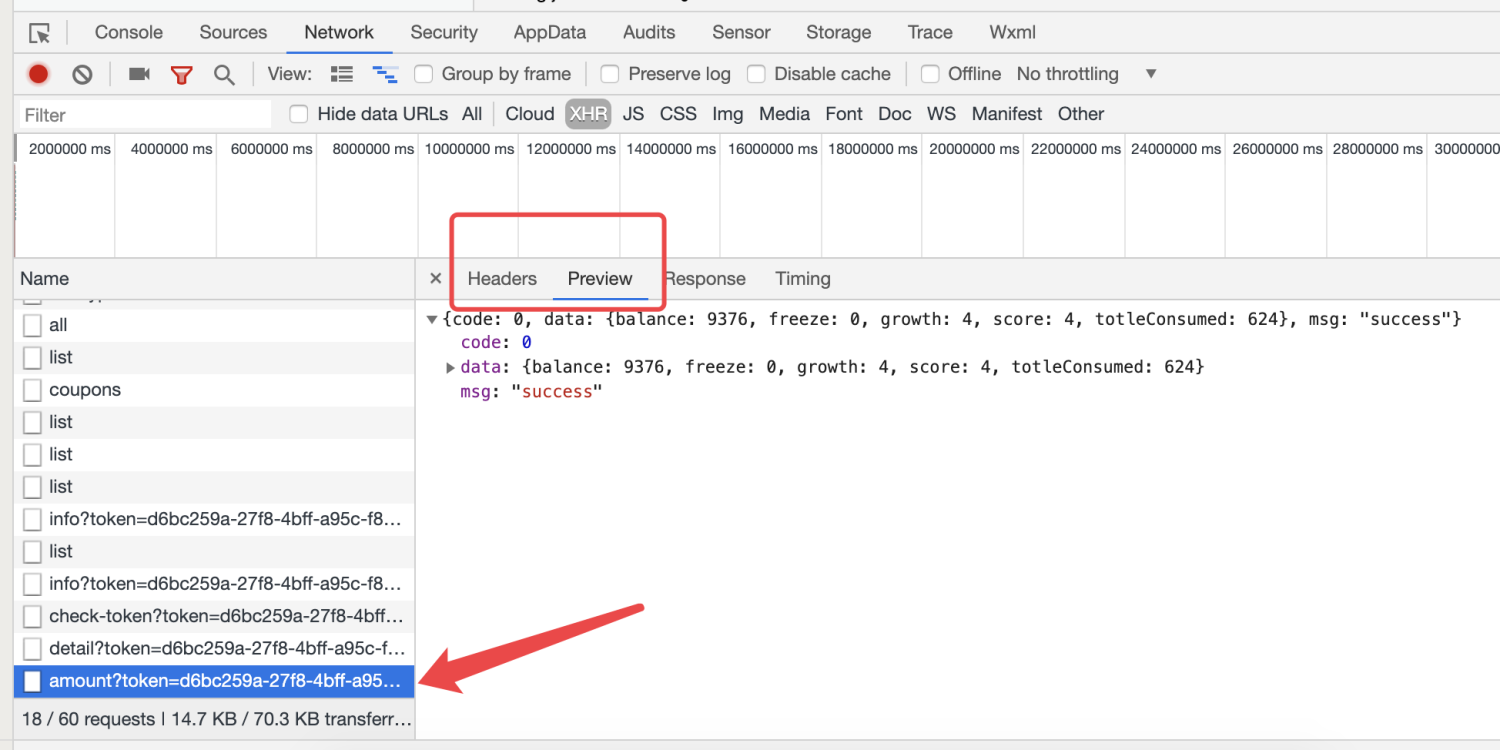
Here we only need to pay attention to the two tags Headers and Preview.
1. Headers are the status of requests initiated by this interface.
2. Preview is the situation returned by the server of this interface. You can view the return data of this interface request in detail.
**Headers Points to Focus on:**
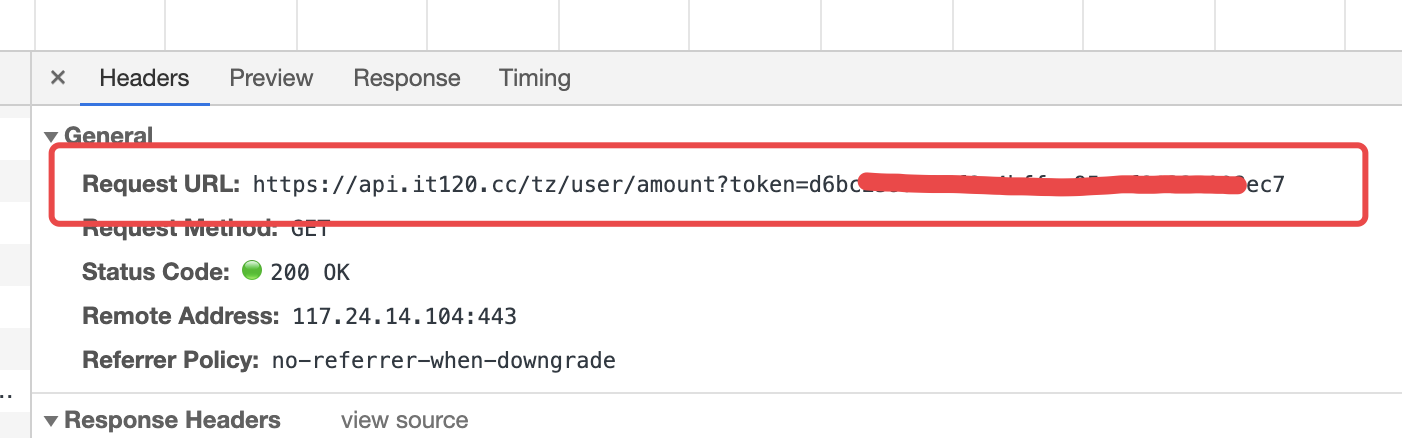
Here you can view the complete request address of this interface, which can be used to check whether there are any errors in the interface address.
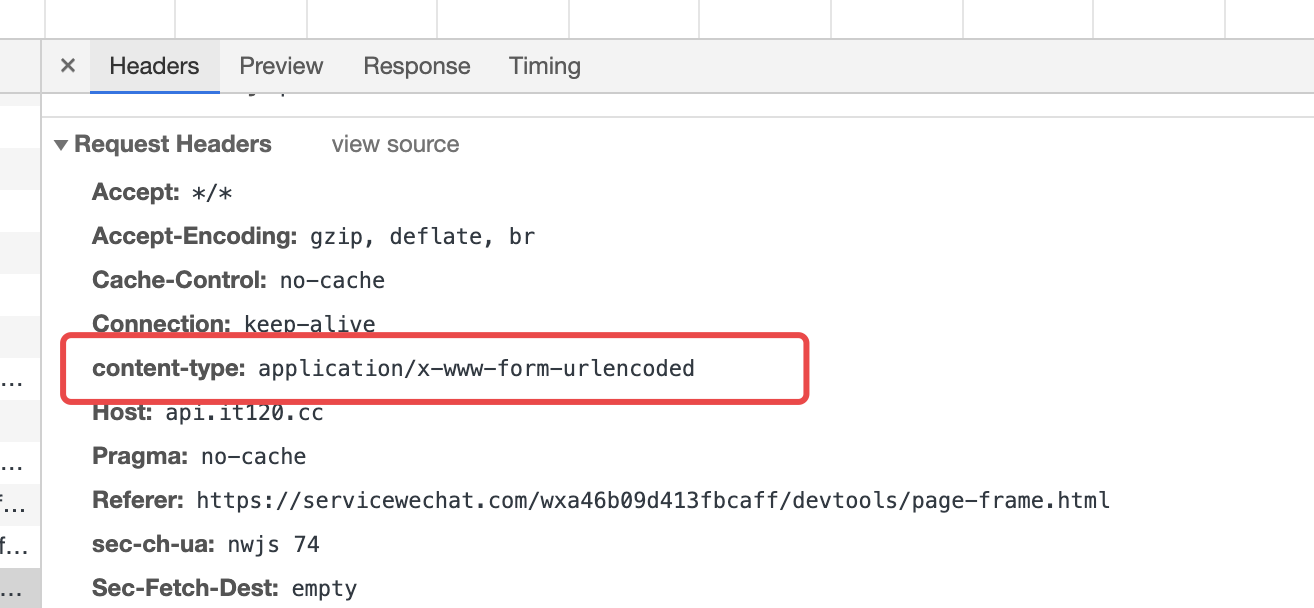
content-type must be application/x-www-form-urlencoded. If it is not this, it means there is a problem with the call of your interface. Please refer to the following article to troubleshoot:
["Parameters are clearly passed, why is it still prompted that parameters are missing? 》](https://www.yuque.com/apifm/doc/mgrw2p)
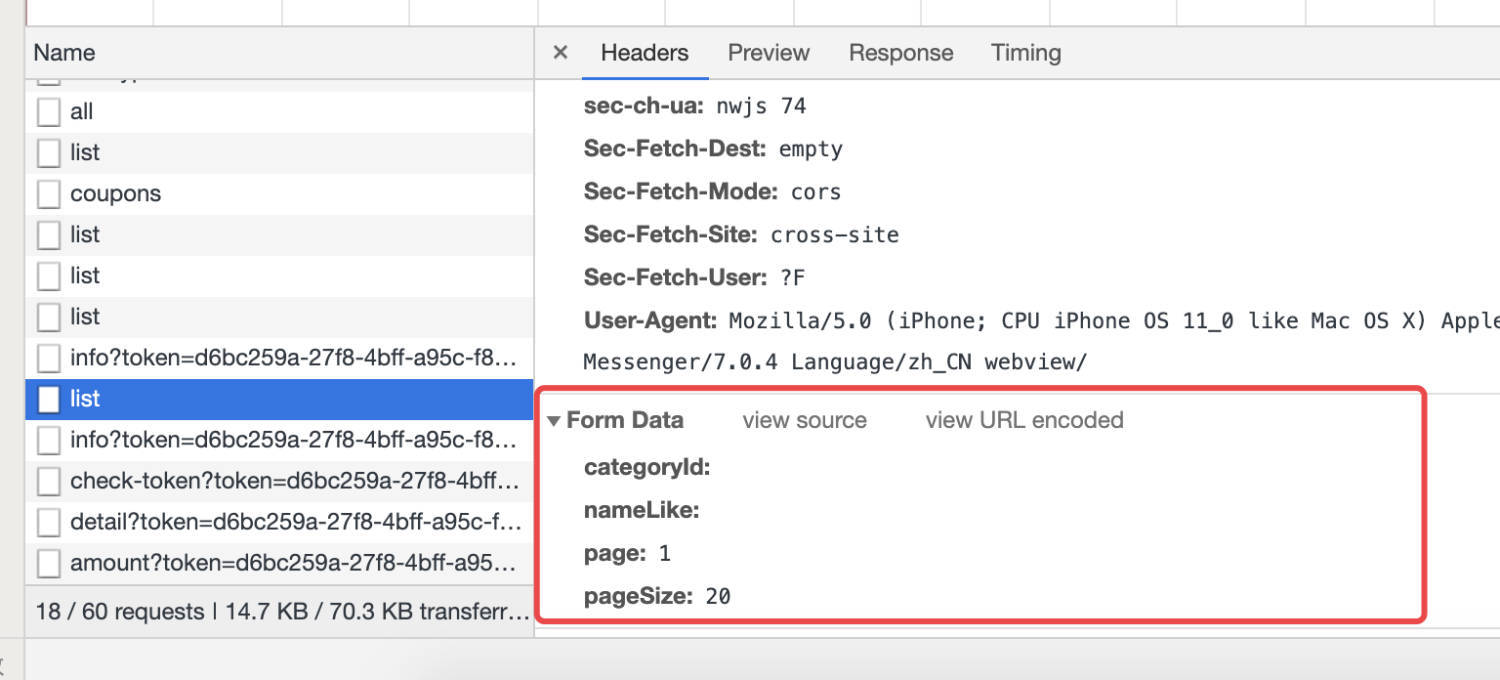
Finally, look at the request parameters. Here are the request parameters initiated by you when calling the interface this time. Please carefully check with the interface document to see if the parameter name and parameter format are correct.
After mastering the above steps, I believe you will make great progress in calling interfaces!