Quickly implement Banner / carousel image / app startup image in the mini program,If you haven't learned it yet, you can review it through the following link:["Quick Development of Mini Program Carousel Chart Implementation (Banner)"](https://www.yuque.com/apifm/doc/qpkl3x)
As mentioned in the title, today we are going to answer a question that many people have. Such questions are connected by analogy, and you can get the whole picture at a glance. Once you understand how to jump to a product, then you can easily master how to jump to the product list, jump to any page of the mini program, and even jump to other mini programs:
# Implementation ideas
First of all, we need to know the principle of apifm-wxapi: publish data in the background, and the applet reads the data you publish in the background through apifm-wxapi!
So the idea to solve the problem in this case is to put a mark anywhere in the background. After reading the data on the applet, it will judge based on this mark and then perform logical processing.
# Implementation steps
## ① Mark the background
Marking is optional and depends on your own pleasure. Let’s mark it here for the time being: “Business Number”.
Edit the published Banner in the background. In the "Business Number" position, fill in the ID of the product you published:
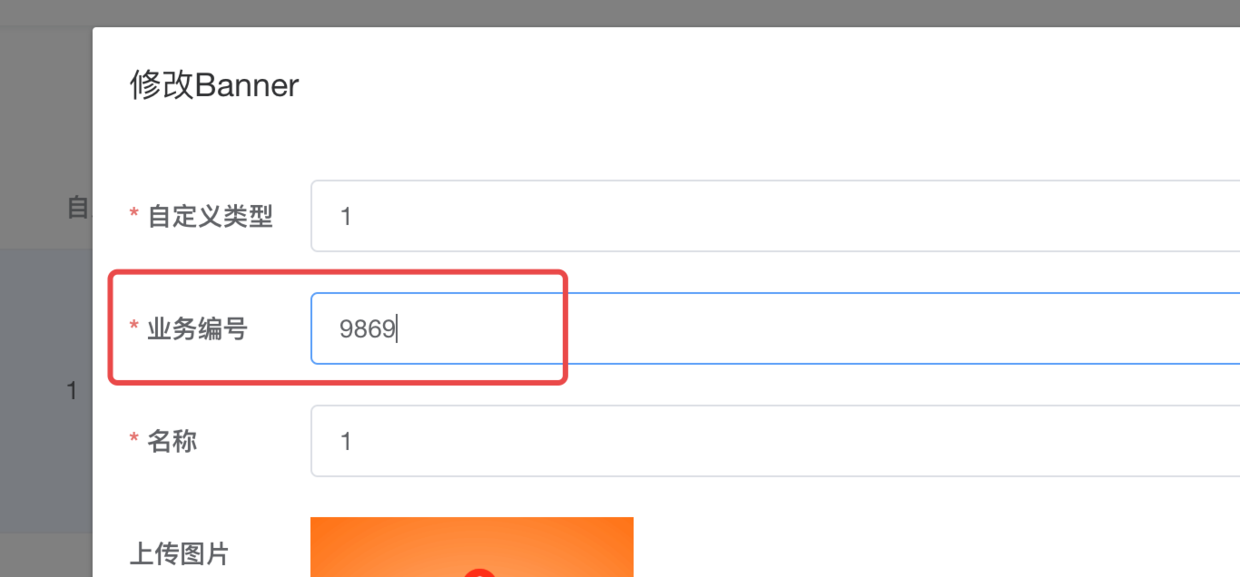
_Here 9869 is the ID of one of your products. You want to jump to the product details page after clicking this Banner_
## ② Identify and process the tag
First, we add an event to handle clicks in the banner of the mini program. This event requires a parameter, which is the above mark: Business number
```plain```
_The business number uses data-id as a parameter, and the click event is tapBanner_
Processing logic in js:
```plain
tapBanner: function(e) {
const goodsId = e.currentTarget.dataset.id // Get parameter value
if (goodsId) { // If the business number is filled in in the background, then jump, otherwise no jump
wx.navigateTo({
url: "/pages/goods-details/index?id=" + goodsId
})
}
}
```
** Done! **
By running the above code, you have implemented Banner to jump to the specified product after clicking;
Through the above example, you already understand that we don’t have to use the business number to mark it. We can also use jump links. You can try it specifically.
_Some business scenarios even require multiple tags, and the mini program can judge multiple tags at the same time to achieve different permutations and combinations and jump to different pages_
How is it? Can you use it? If you have any experience, please share it with us!
Looking forward to your progress!
grateful!