Live streaming is the most popular nowadays, and all major platforms have also launched live streaming functions, which users can use very conveniently.
There are Internet celebrity live broadcasts, such as Douyin, Video Account, Kuaishou, etc., which are live broadcast platforms whose main functions are to attract fans and collect gifts. Users only need to register and activate anchors on these platforms to conduct live broadcasts; most of these live broadcasts are for personal talent display.
There are also currently popular live streaming platforms, such as Taobao Live, Douyin Live, Kuaishou, etc. In such live broadcast rooms, users generally need to publish or select product information on the current platform, and then live broadcast; therefore, the live broadcast content is mostly product promotion.
The above platforms have relatively large limitations and can only live broadcast within the larger framework of the platform. In order to meet the live broadcast needs of some self-built malls, current mini program platforms (WeChat Mini Program, Alibaba Mini Program, Baidu Mini Program, Douyin Mini Program...) basically provide live broadcast room plug-ins to facilitate developers to directly access live broadcast services on their own mini program platforms.
However, in this mode, although the mini program, product, and order levels can be customized, the live broadcast room plug-in and customizable elements are still very limited. Therefore, many users hope to develop their own live broadcast rooms, where live broadcast hosts push streams and viewers live stream pulls. This article teaches you how to build your own live broadcast room in the fastest and most economical way:
# Activate cloud live streaming service
The core of live broadcast is push and pull streams. For this part, we directly use Tencent Cloud’s “Cloud Live Broadcast” service, which can be used directly after activation.
[https://curl.qcloud.com/7JlpowOQ](https://curl.qcloud.com/7JlpowOQ)
Click on the link above to go directly to the relevant interface of Tencent Cloud's "Cloud Live Broadcast". You can explain why you recommend using cloud services participating in the cloud instead of building a streaming media server yourself for push and pull streaming.
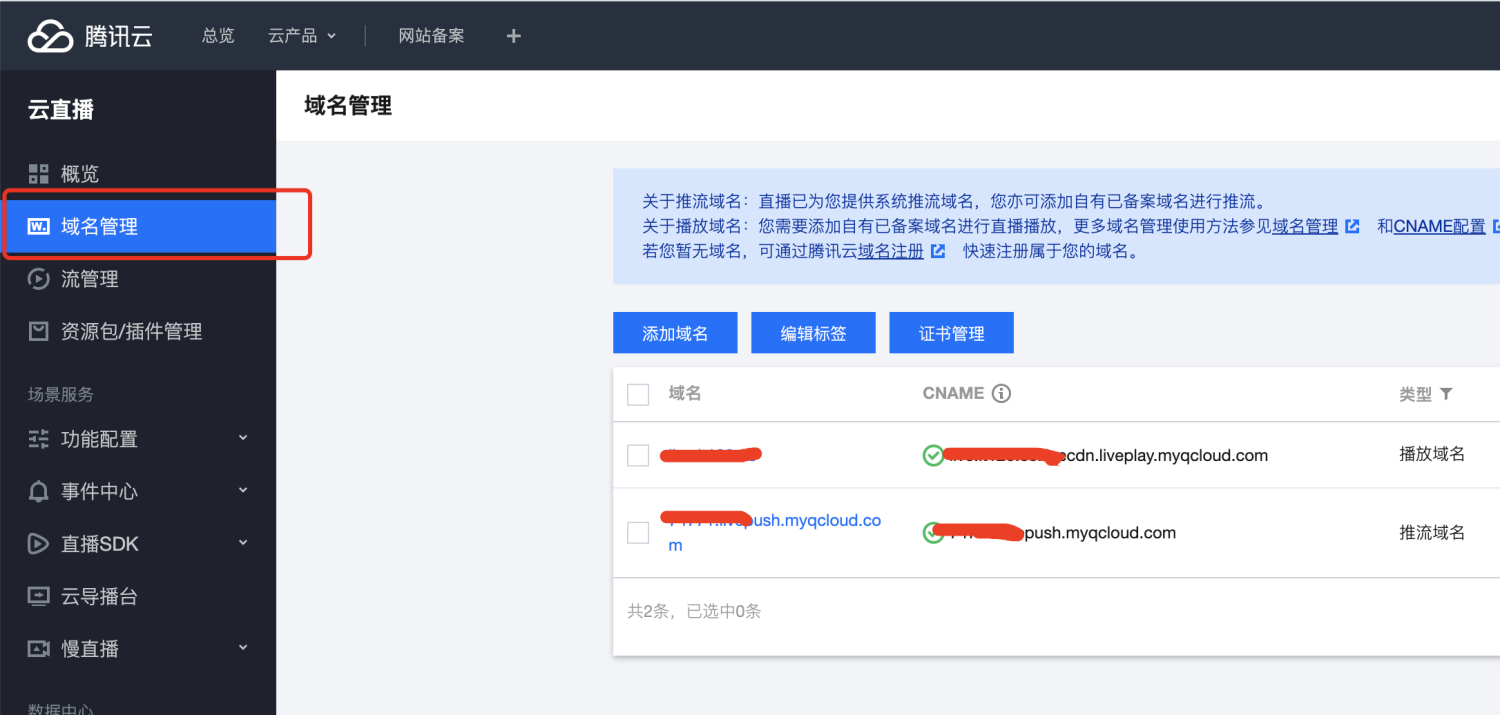
After activation, you need to bind 2 domain names, one for streaming (the host pushes the video only to Tencent Cloud) and one for pulling the stream (the user watches the live broadcast from Tencent Cloud)
Click on 2 domain names respectively to enter the domain name setting page. The settings inside can be simply configured according to your actual needs;
There is an "Authentication Configuration". It is recommended to add authentication configuration to the push domain name, so that only users with specific permissions can push the stream. For pull authentication, you can configure whether authentication is required according to your own needs. If authentication is configured, you need to specify an authentication key yourself.
# Live event callback
Configure live event callbacks. When the status of the live push-pull stream changes (start live broadcast, pause live broadcast), the "apifm" will receive relevant notifications, and then automatically change the status of your live broadcast room.
So if you want to dynamically change the status of the live broadcast room, you can enable event callback and set an authentication key for the event callback;
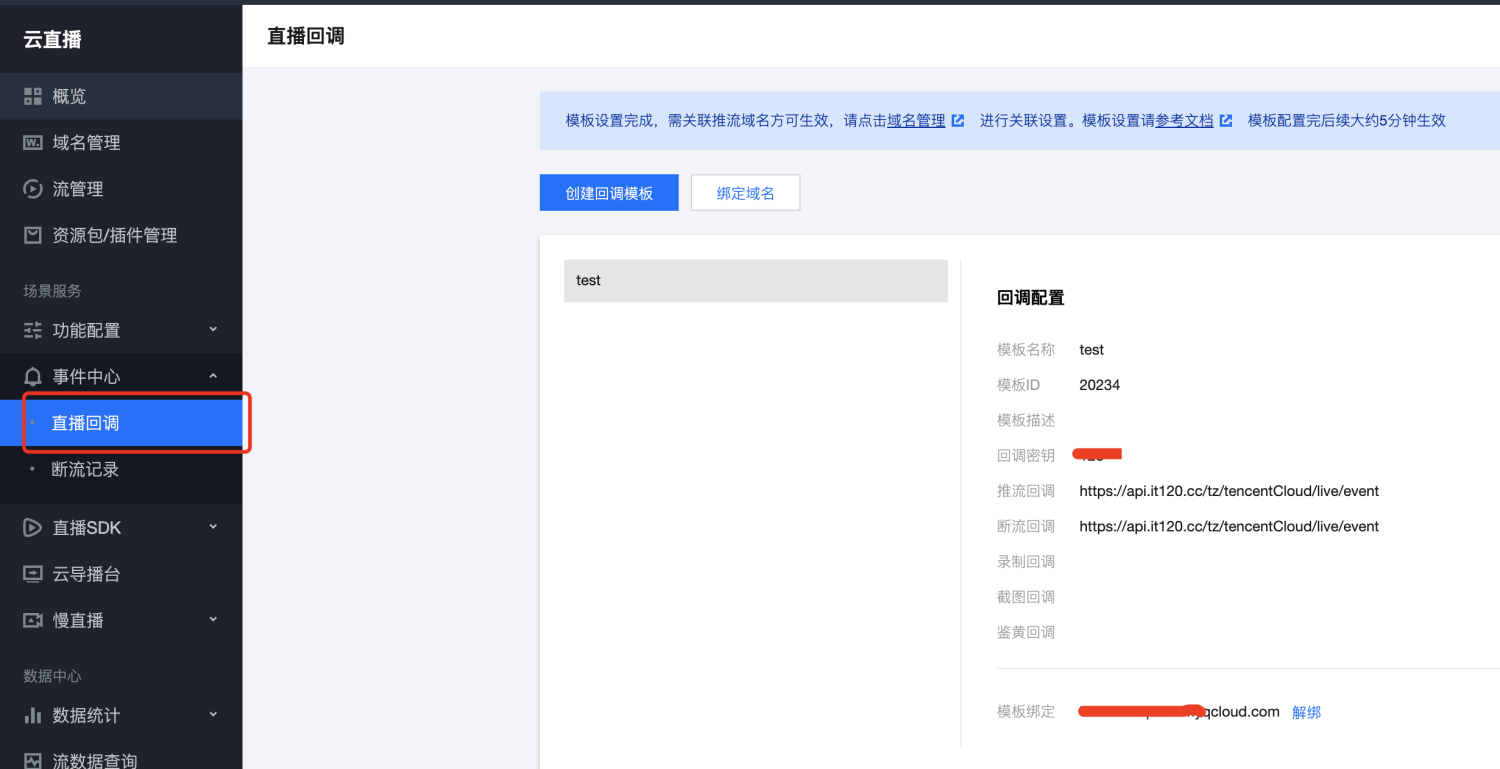
Please fill in the callback address: https://api.it120.cc/tz/tencentCloud/live/event
Also set your own callback key
# Live broadcast room configuration
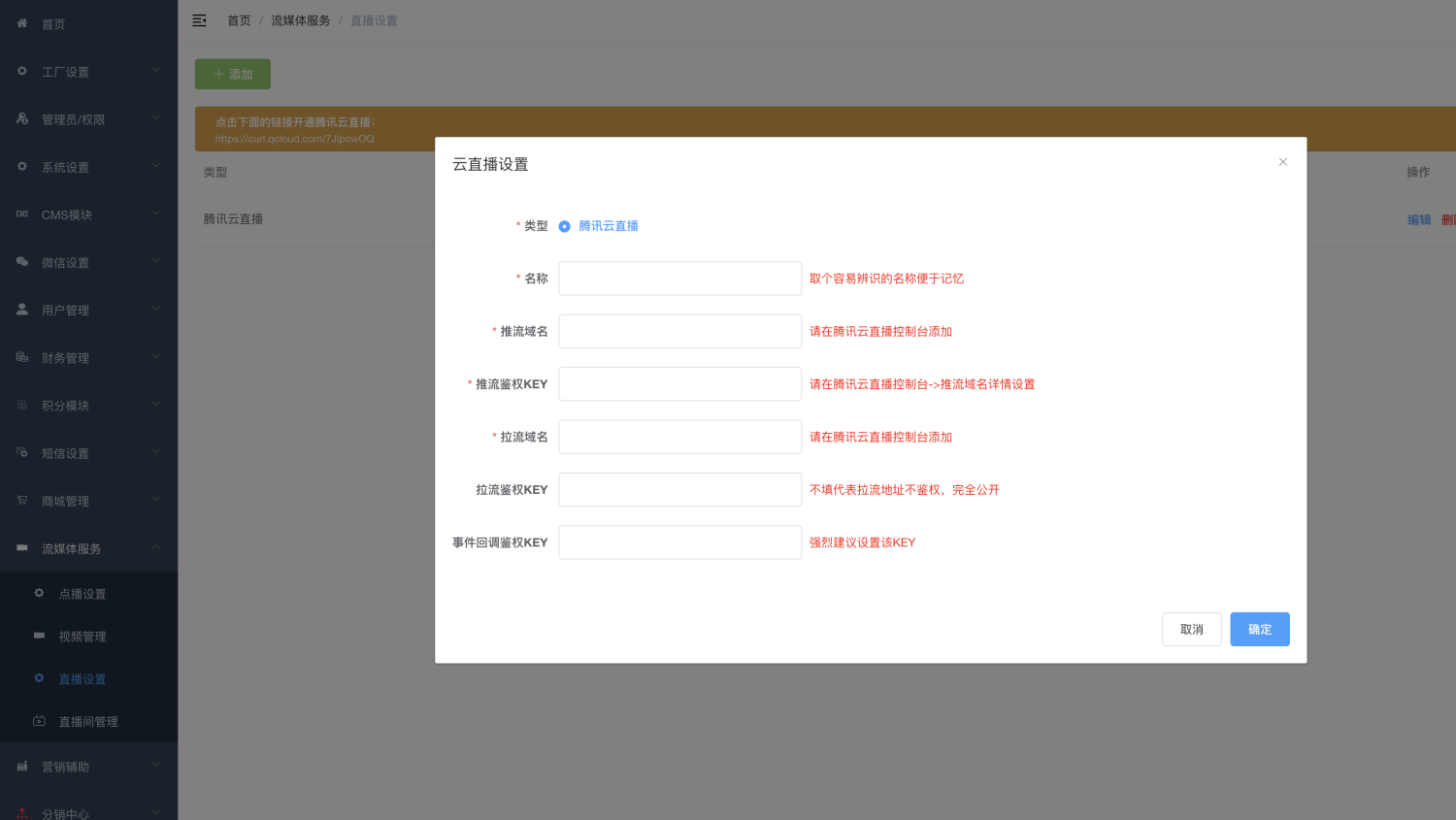
Go to the “apifm” backend and configure the above cloud live broadcast information
# Live broadcast room management
## Add live broadcast room
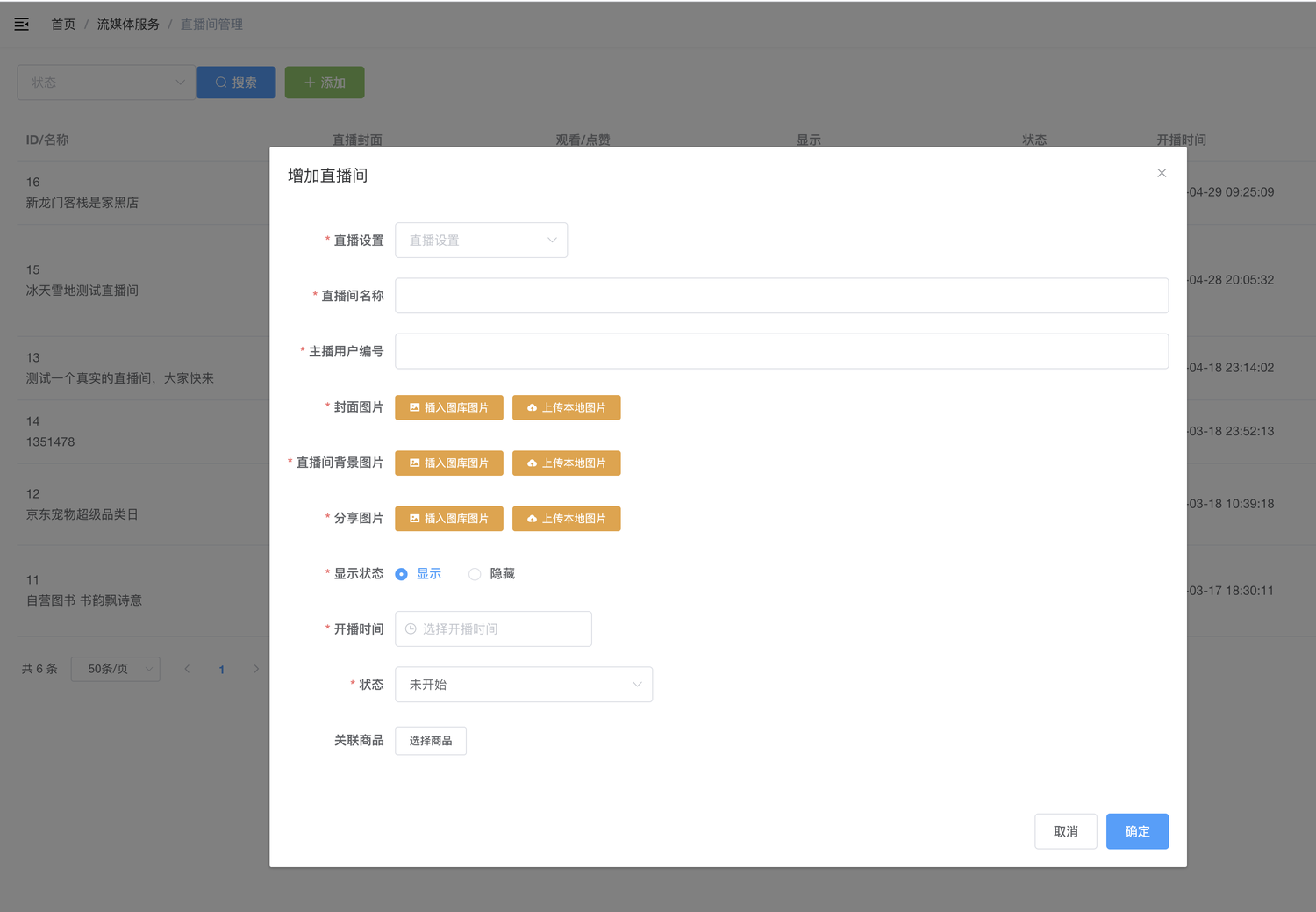
At this point, you can create a live broadcast room at will. The main parameters are explained:
+ Live broadcast settings: This is the live broadcast settings in the previous step
+ Anchor user number: The user number can be viewed in user management. Only designated users can initiate anchor push;
+ Broadcasting event: If it exceeds the broadcasting time by 2 hours and the live broadcast has not started, the system will automatically expire;
+ Related products: products in the current live broadcast room
## View push and pull flow
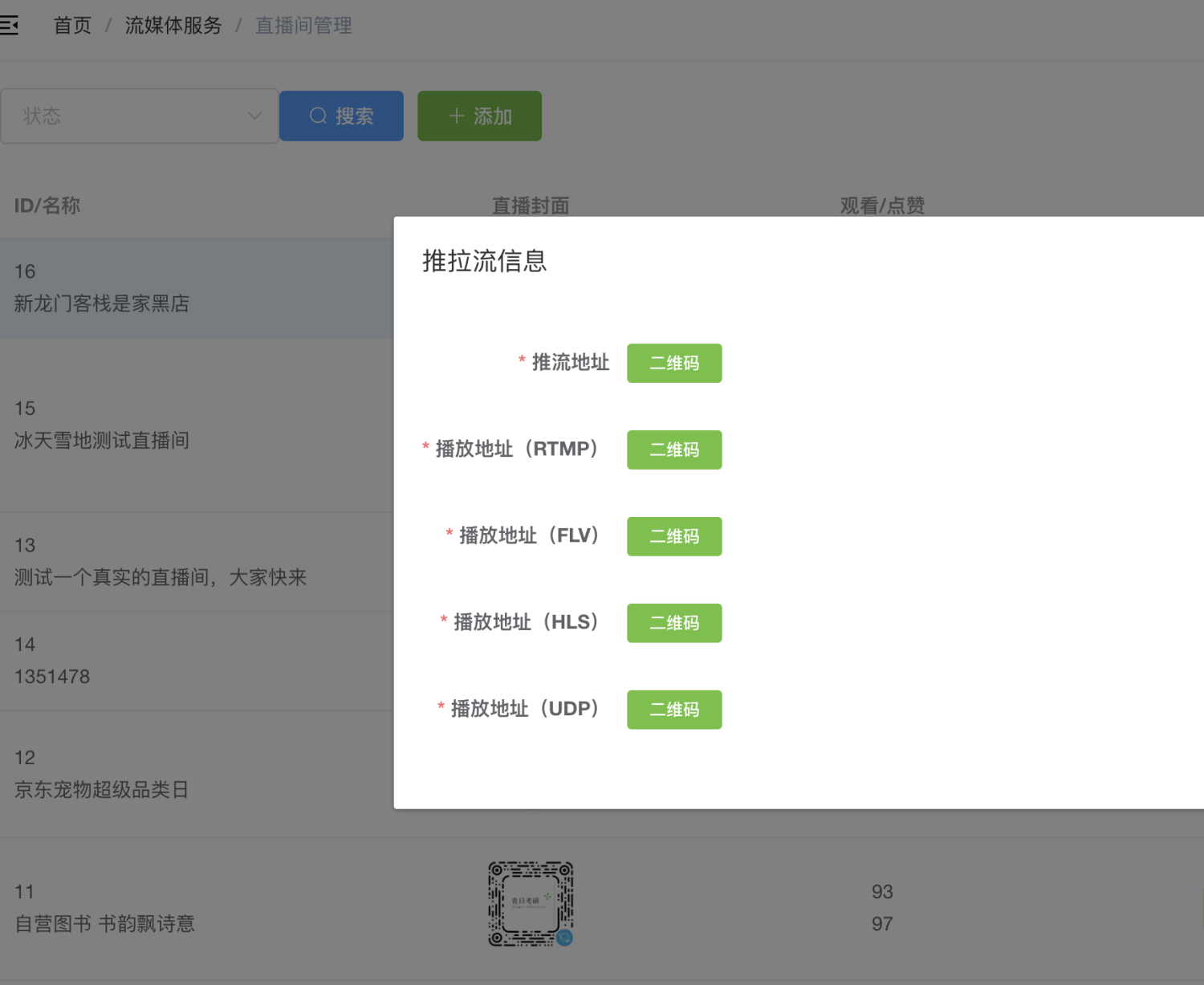
The push-pull flow address can be directly viewed in the background to facilitate push-pull flow by special equipment
# Related interfaces
For detailed description of the following interfaces, please refer to the interface documentation of "apifm":
## Anchor gets the list of live broadcast rooms
+/liveRooms/my+ Get a list of all live broadcast rooms where the anchor is TA
## User obtains live broadcast room list
+/liveRooms/list+ Users view all live broadcast room lists
## Anchor checks the details of the live broadcast room
+/liveRooms/my/info+ This interface will return the push address, and the front end can initiate the push through this address.
## Users view live broadcast room details
+/liveRooms/info+ This interface will only return the pull address, not the push address. If you call this interface once, the number of viewers in the live broadcast room will be +1
## The anchor sets a certain product as the main product
+/liveRooms/goods/mainly+ Set the main product so that you can display it in a prominent position on the front end
## End live broadcast
+/liveRooms/my/stop+ Only the anchor has the permission to call this interface
## Like
+/liveRooms/like+ Like the live broadcast room
## View online user list
+/websocket/rest/liveRoom/onlines+Only the host has the authority to call
## Kick a user out of the live broadcast room
+/websocket/rest/liveRoom/kickOut+Only the host has the authority to call
## websocket interface
Chat rooms in the live broadcast room, user entry reminders, etc. are all performed through websocket, so if you are using it in a mini program, you need to add the websocket domain name in the server domain name list of the mini program:wss://api.it120.ccThe link address of websocket is:wss://api.it120.cc/websocket/liveRoom/123/456+ 123 Please replace it with your own live broadcast room ID
+ 456 is the token of the currently logged in user. Please pass in the actual token of the currently logged in user.
## Follow the live broadcast room
+/liveRoom/attention+ Follow to get the broadcasting reminder
##
## Unfollow the live broadcast room
+/liveRoom/attention/canel+ Follow to get the broadcasting reminder