#Usage scenarios
Through the store (merchant) function of the mall module of apifm, the entry of stores (merchant) can be realized. Merchants can manage their own products and order data and be responsible for the delivery of orders by themselves;
All stores (merchants) collect payments uniformly in the background, and then settle with the stores (merchant):
1. A store (merchant) can set up a store manager, and the payment income will be settled to the store manager’s user balance;
2. A store (merchant) can set up a salesperson, and after the salesperson promotes the store (merchant) to settle in, he can enjoy the sales promotion points of the store (merchant);
For the above income, store managers and salesmen can withdraw cash independently and view the income and expenditure details.
#Activation method
Log in [https://admin.it120.cc/](https://admin.it120.cc/) backend, left menu "Factory settings" --> "Plugin management", purchase and activate the "Product profit sharing" plug-in
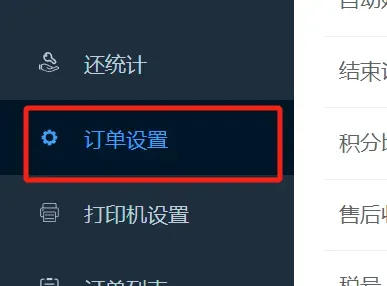
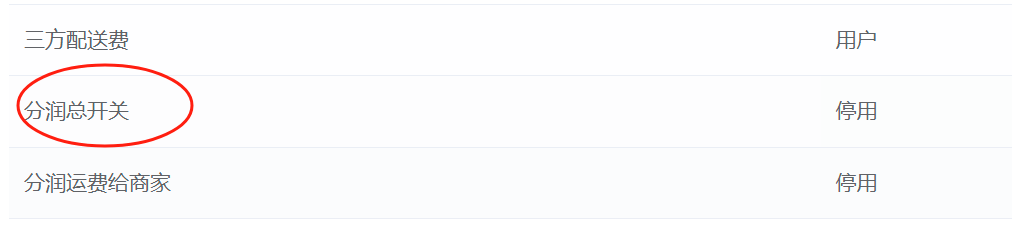
# Whether to distribute the main switch
#Set the platform default service fee
The platform default service fee can be set globally. If the product profit sharing setting does not set the platform service fee, it will be calculated according to the global platform service fee;
If a separate platform service fee is set for profit sharing of a product, the platform service fee set for the product shall prevail;
["Set the default platform service fee through system parameter settings"](https://www.yuque.com/apifm/doc/kcncad)
Set system parameters to configure:
**Parameter type:** Text parameter
**Parameter name:**GLOBAL_BENEFIT_PLATFORM_FEE
For example, if you plan to charge a 6% platform service fee, just fill in 6;
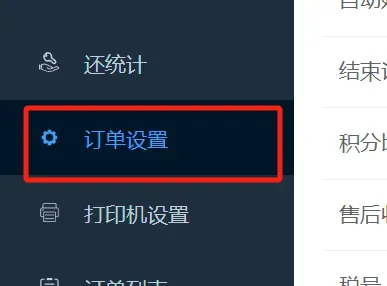
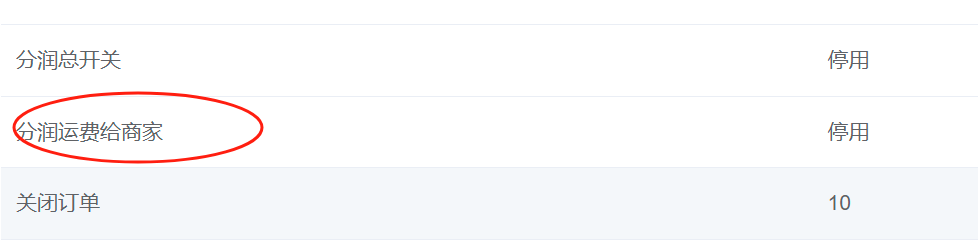
# Does shipping cost belong to the platform or the store?
# Product review
After turning on this plug-in, the products released by the store (merchant) need to be reviewed and approved by the backend administrator before they can be put on the shelves. Otherwise, the products will not be visible on the front end.
Click "Operation" --> "Profit Sharing Settings" After entering, click "Approval" / "Approval Not Passed" to review the products released by the store (merchant)
# Set profit sharing
Click "Operation" --> "Profit Sharing Settings" to set the profit sharing ratio of this item.

In addition to the above four types of profit sharing, you can flexibly add more profit sharing settings (profit sharing name, profit sharing users, profit sharing ratio) according to actual needs
#Amount calculation
The profit is divided according to the actual selling price of the product. Assume that as shown in the figure above, the purchase price of the product is 570 yuan and the selling price is 1,000 yuan, then:
1. The platform charges a service fee of 1,000 * 3% = 30 yuan;
2. The salesperson’s tip is 1000 * 1% = 10 yuan;
3. Supplier rebate 1000 * 7% = 70 yuan;
4. Store manager’s income 1,000 - (30 + 10 + 70) = 890 yuan
The above four users can view detailed transaction details in their user balances and capital flows, and can apply for cash withdrawals.
# When to divide profits
Profit sharing will be triggered and realized during the following operations:
1. The user completes the confirmation of receipt through the Confirm Receipt interface;
2. After delivery, if the user does not confirm the delivery for a long time, the system will automatically confirm receipt after timeout (default 7 days);
3. In the background order details interface, the administrator clicks "Transaction Successful";
4. Orders that support write-off can be completed through the write-off interface;
# No profit sharing problem troubleshooting
1. On the order details page, check the store to which the order belongs (note that it is not a self-pickup store). Only when the order belongs to the corresponding store, the system will distribute money to the store. The store to which the order belongs follows the store where the product is encountered. You can edit the product in product management, hang the product under the corresponding store, and then retest.