By default, users only need to scan the QR code and follow the QR code on the backend homepage. When a user places an order and completes online payment (or the order is pushed immediately in the case of cash on delivery), the official service account of "apifm" will remind you in the form of a template message to process the order and ship the order as soon as possible.
In addition to the above reminders, "apifm" also provides 2 other reminder methods:
1. By activating the DingTalk reminder plug-in, push reminder information to multiple groups of people on DingTalk;
["apifm" DingTalk Reminder Plug-in Usage Tutorial](https://www.yuque.com/apifm/doc/nmqn8v)
2. Remind through your own service account;
The following mainly introduces how to use your own service account to push template messages:
# Set template message template
Log in to your WeChat service account and set the message template:
Search the template message template of "New Order Notification" from the template library, click Add, and then copy out "**Template ID**" will be used next;
Just choose any template that suits you
# Service account configuration
On the left menu, WeChat Settings --> Official Account Settings, configure the APPID and SECRET of your own service account, as shown in the figure:

If you do not see the "Official Account Settings" menu in the left menu, please go to the left menu "Factory settings" --> "Module management". After enabling the "WeChat Official Account" module, just refresh the background interface with F5.
# Get openid
The openid here refers to the person who receives the reminder, and the corresponding openid on your own service account;
**How to get openid? **
Log in to the backend of your service account [https://mp.weixin.qq.com/](https://mp.weixin.qq.com/), click "User Management" on the left menu, and after finding the user, click to enter the user's detailed interface;
In the address bar of the browser, you can see a link address, where tofakeid corresponds to the user's **openid**
****
["How to check the openid of a service account user"](https://www.yuque.com/apifm/doc/dbtods)
**So far, you have obtained 2 pieces of data through the above steps: "template ID" and "openid"**
# Configure reminder
In the left menu, System Settings --> System Parameters menu, add the following 3 system parameter settings (text type):
```javascript
wx_template_alarm_code = "Template ID"
wx_template_alarm_openid = "openid"
wx_template_alarm_template= variable information of template message
```
The values of the first two parameters correspond to the two corresponding values obtained in the above steps, and the variables of the template message:
```json
{
"first": {
"value": "You have a new order, please process it as soon as possible",
"color": "#173177"
},
"keyword1": {
"value": "${order.orderNumber}",
"color": "#173177"
},
"keyword2": {
"value": "${order.isPay?string('paid','unpaid')}",
"color": "#173177"
},
"keyword3": {
"value": "${order.amountReal}",
"color": "#173177"
},
"keyword4": {
"value": "${.now?string('yyyy-MM-dd HH:mm:ss')}",
"color": "#173177"
},
"keyword5": {
"value": "${user.nick}-${user.mobile}",
"color": "#173177"
},
"remark": {
"value": "${order.remark}",
"color": "#173177"
}
}
```
["Instructions for using variables"](https://www.yuque.com/apifm/doc/wtviya)
Please modify it according to your own actual situation
## Write the variables first to eliminate sending exceptions caused by variable errors.
Don’t use variables for the time being. Use WeChat’s official examples to test the variables. If the hard-coded variables can be received, then the problem is caused by the variables. We will proceed to the next step of troubleshooting.
If the variable is hard-coded and still cannot be received, it means there is a problem with the json data you configured. Please check carefully.Example: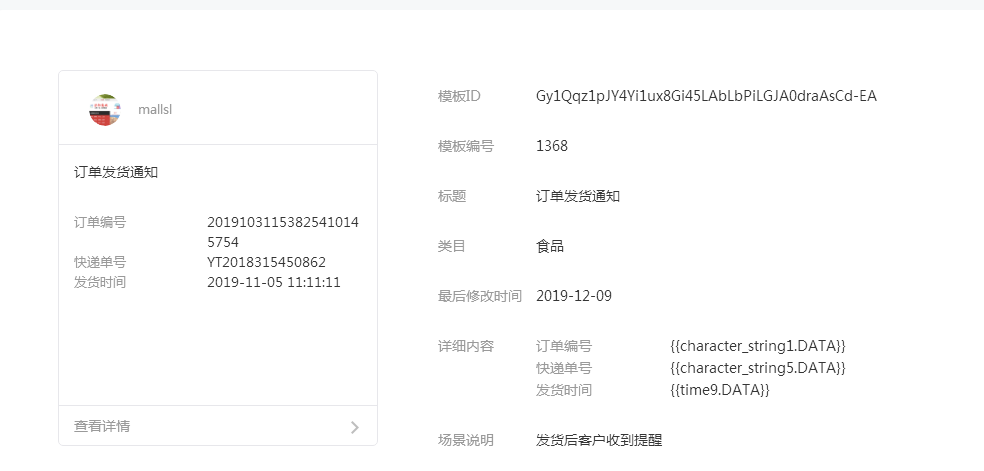
This template has three variables. When testing, write down these three variables using the example content on the left to see if you can receive the message, such as:
```json
{
"character_string1": {
"value": "2019103115382541014",
"color": "#173177"
},
"character_string5": {
"value": "YT2018315450862",
"color": "#173177"
},
"time9": {
"value": "2019-11-05 11:11:11",
"color": "#173177"
}
}
```
Confirm the content of the variable and use the official example directly, so that you can definitely receive the message, and then troubleshoot the problem caused by the variable in the next step.
# How to push to multiple people
wx_template_alarm_openid parameter, openid of multiple people, separated by commas in English
# How to use service accounts under other accounts to push
System parameters, add a parameter:
wx_template_alarm_merchant_id
The parameter value is the other party’s merchant ID.
# Can't receive message
## General inspection
1. The system will only remind you after the order is paid. If the user just places an order without paying, the system will not remind you;
2. Check the configuration of the corresponding service account (accessToken refresh time). It is possible that the secret of your service account has been reset midway, resulting in the inability to refresh in time to obtain the latest accessToken;
## Improper use of variables
It may be that your variables are written incorrectly. You can use the variables first and write them according to the text on the template message example for testing. If you can receive the mini program after writing it to death, but not using variables, then it is a problem with the variables. If it is a variable problem, then replace the variables one by one to see which variable is written incorrectly, and it will be easier to troubleshoot.
**The time and date must be in a specified format**
All date class variables must specify the date display format, such as the current time:
```javascript
${.now?string('yyyy-MM-dd HH:mm:ss')}
```
** here ?string('yyyy-MM-dd HH:mm:ss') ** cannot be omitted