# Add npm support
Check whether the `package.json` file exists in the root directory of your mini program project. If it exists, it means that your mini program project already supports npm. Otherwise, you need to follow the following tutorial to add npm support:
```bash
npm init
```
After the command is executed, make sure that the `package.json` file appears in the root directory, indicating success. Otherwise, check the above operations until success.
# Install
```bash
npm install apifm-wxapi
```
Run this command to install the latest version of the SDK with one click
# Build
The npm module installed by the mini program cannot be used directly. You need to go to the development tool: "Tools" --> "Build npm" and it will prompt that the build is successful before you can use it!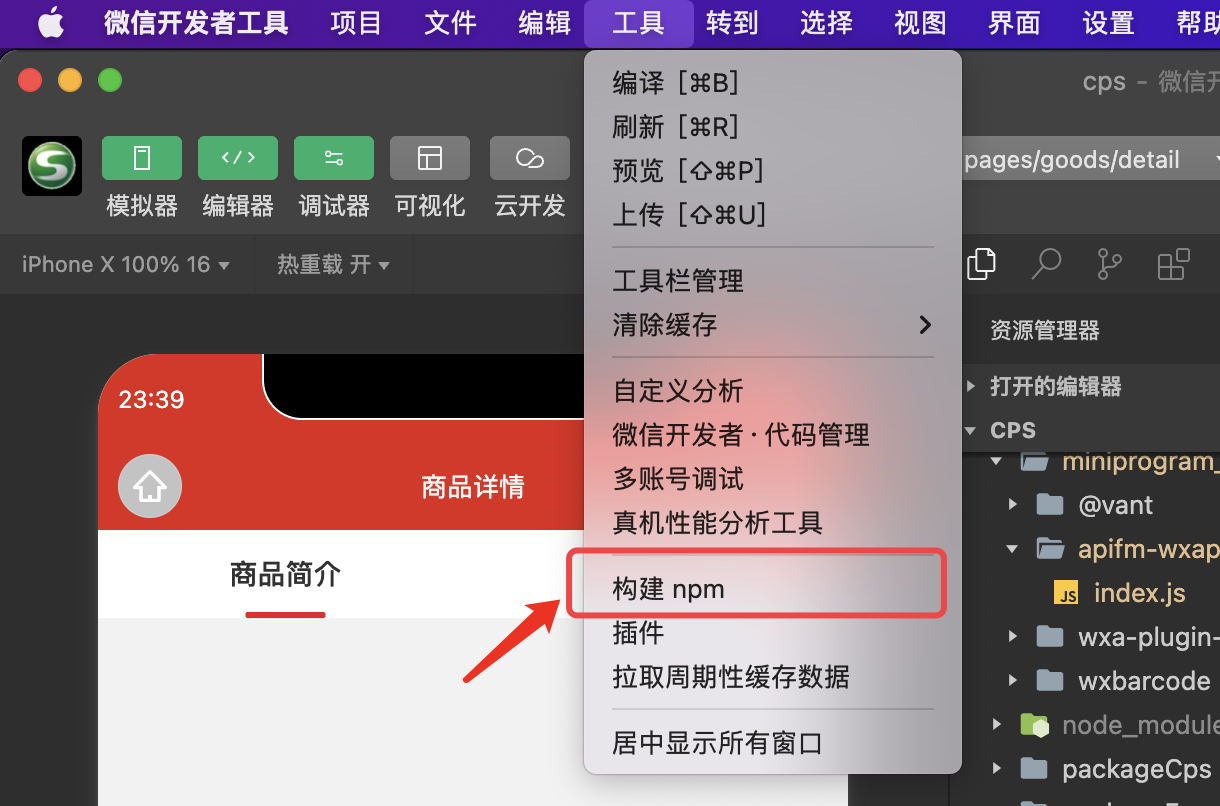
# use
js file to load the SDK directly:
```javascript
const WXAPI = require('apifm-wxapi')
WXAPI.init('gooking')
```
`WXAPI.init('gooking')`This code can be executed globally once in the mini program and does not need to appear everywhere, so it is recommended to execute it in the mini program`app.js`File, just write it once.Then you can directly call any method of the SDK to read and operate your background data, for example:
```javascript
WXAPI.banners().then(res => {
if (res.code == 0) {
this.setData({
banners: res.data
})
}
})
```
Or:
```javascript
const res = await WXAPI.banners()
if (res.code == 0) {
this.setData({
banners: res.data
})
}
```
# Open source reference
[https://github.com/EastWorld/wechat-app-mall](https://github.com/EastWorld/wechat-app-mall)[Code Cloud Mirror:][https://gitee.com/javazj/wechat-app-mall](https://gitee.com/javazj/wechat-app-mall)